Here is the F file :
63rbox v3.f3d (2.3 MB)
If I start the cut at the top it goes about half way then stops where there is a light yellow border it won’t cross, also I have a grey arrow I can’t seem to delete, I have tried a lot of things from past lessons learned from a few of you experts, Please take a look and see if you can tell me where I messed up Please, Thank you -Rick
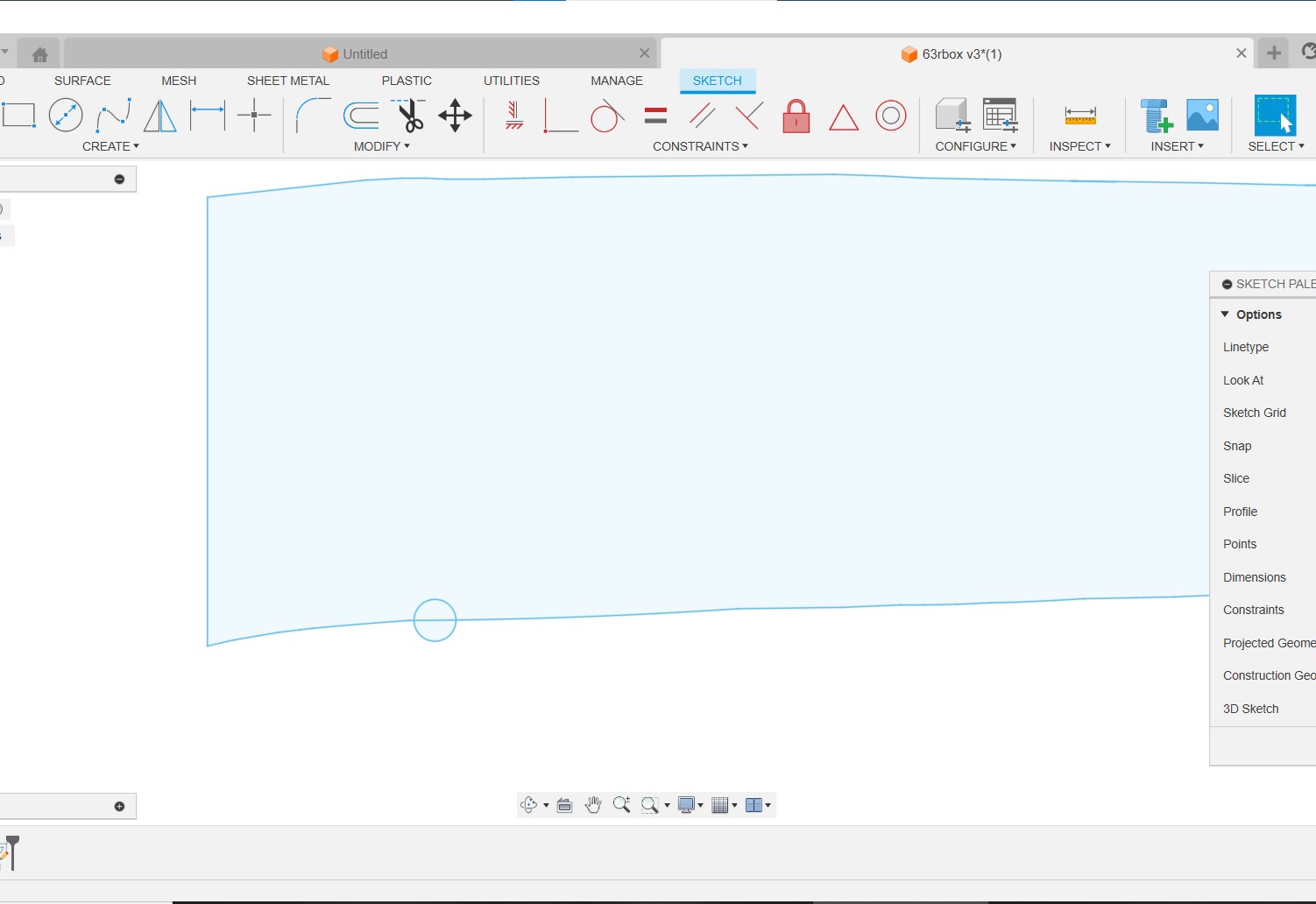
Your sketch line where the circle is, does not connect to form a closed shape. If you connect that line, then the shape will turn light blue indicating a closed line an then you can either extrude and make your cut program, or just from the sketch.
5 Likes
Sticks got on that quickly and solved the issue to make the ‘profile’ complete. You will definitely be able to make a body and go to Manufacturing, pick the face contours and run a tool path.
Cutting with the sketch turns out to be a messy deal:
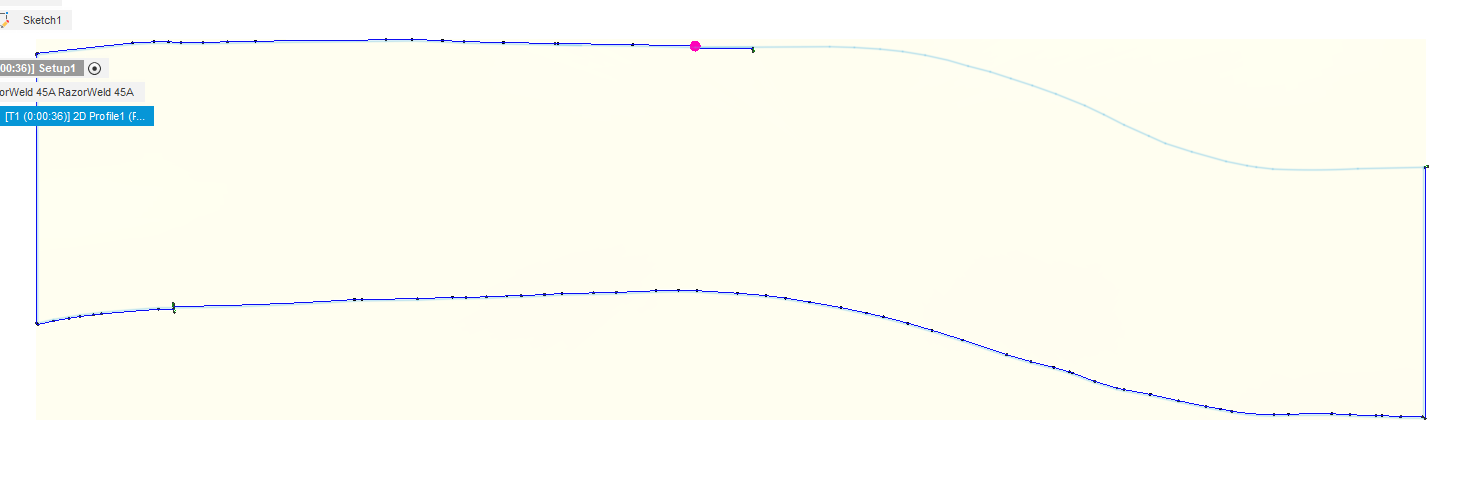
Here is what is going on. It is mostly overlapping lines. I circled in yellow the ones that had to be changed for Fusion to be happy with the sketch to take to “Manufacturing”.

So I made the changes, including the one Sticks found, now you will get a complete toolpath using the sketch.
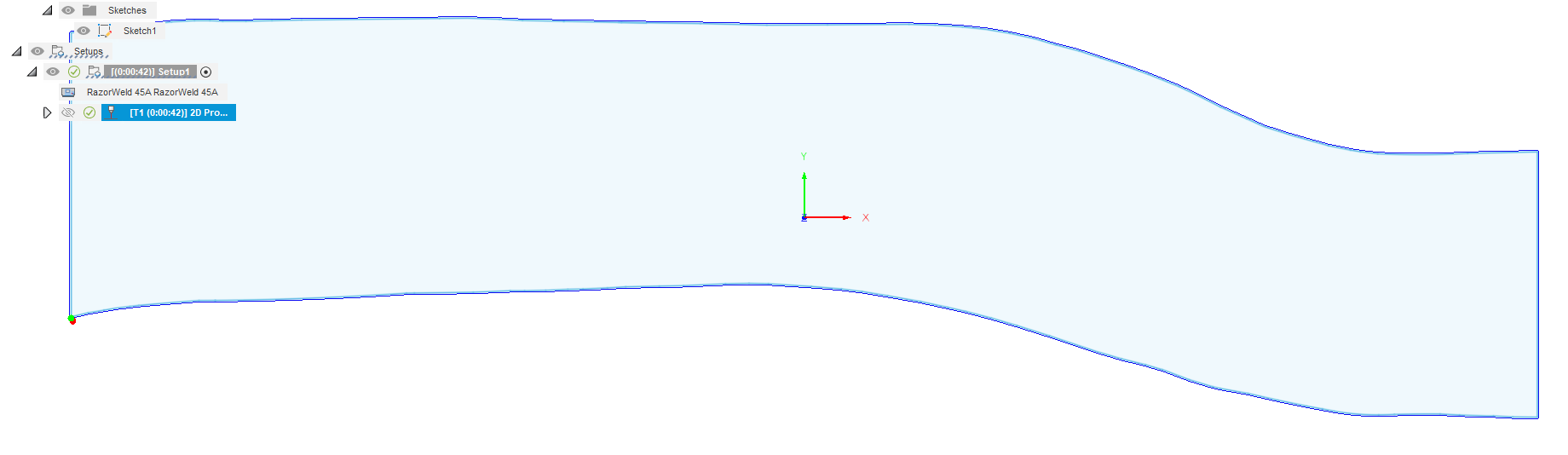
63rbox v3Chelan.f3d (2.3 MB)
The best way to avoid those gaps and overlapping segments is to zoom up on those lines so you are much more likely to cut lines and start lines at a precise points.
2 Likes
Wow, Thank you Sticks, I zoomed in and thought I checked all that, Still a newby, Thank you very much for the assist!
Thank you Jim, I swear I zoomed in and thought I found all of them, But I guess I need new glasses, Thank you so much for the quick help!
You get better service from Jim than you would get from paid support. Actually there are about 10-12 guys here that are as good as it gets.
4 Likes
I uploaded the F file frp, you and I still can’t make a cut program, when you said it was messy, do you mean i need to click on every piece of the lines? the arrow keeps switching directions too. I am sorry.
Yes, That is a Fact, I wish there was a way to send some monetary thanks would be nice, These guys that step up to help are a Godsend for old guys like me that have never touched a computer to design or run anything!
1 Like
Extrude your body, how ever thick your metal is, then do face contour cut.
1 Like
I wasn’t sure that was a message to me: I think you accidentally replied to yourself. That image has too many other issues with connections of segments that it does not easily allow selection with double clicking. Normally, when the sketch is ‘tight’ you can do just about anything and Fusion performs at 100%. By doing either:
- making the body as @Sticks suggests or
- picking the sketch profile as I now describe,
I think those are your best options for this sketch. Unless you want to go thru every segment of the sketch that does not light up with double clicking an adjoining segment.
When I said “use the sketch”, I meant to use the sketch in the contour selection by using the drop down menu and pick “sketch profile” or pick the sketch directly from the browser. With this method you don’t pick any contours.
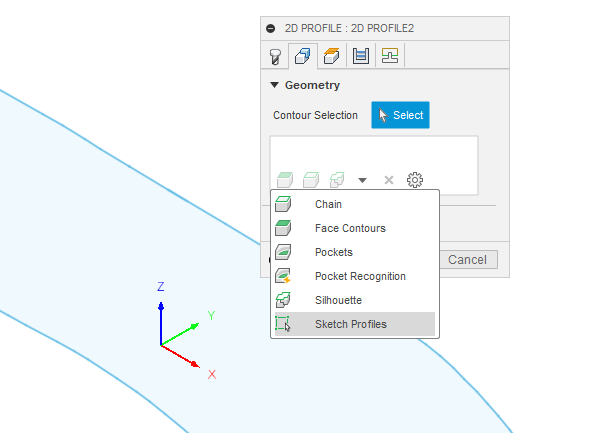
or pick directly from the browser may also work:
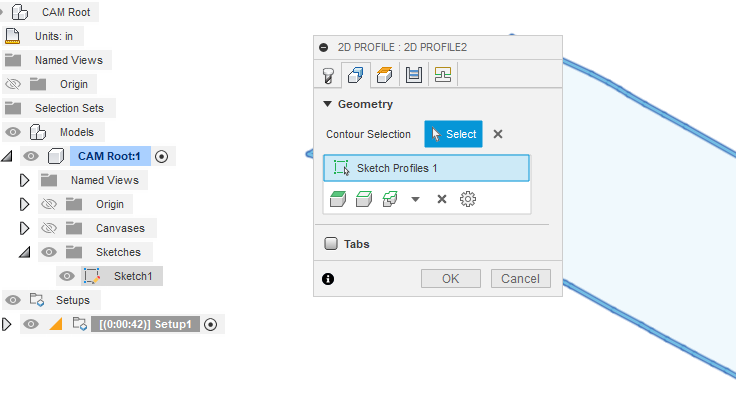
In either case you don’t have to click on any of the contours. I will admit, I did not try that.
Edit: I just tried your original version with the gap fixed and then going to manufacturing and picking the sketch as described above. You can see how Fusion is confused on how to handle things. It cuts out the extra ‘duplicate’ line first going the wrong direction, then starts at the lower right corner and cuts the wrong way up to that first cut and then back to the lower right corner cutting the rest of the image out in the correct clockwise position.
2 Likes
Thank You, i did it and it is back to cutting half but there’s the yellow box again, and it won’t cut that area?
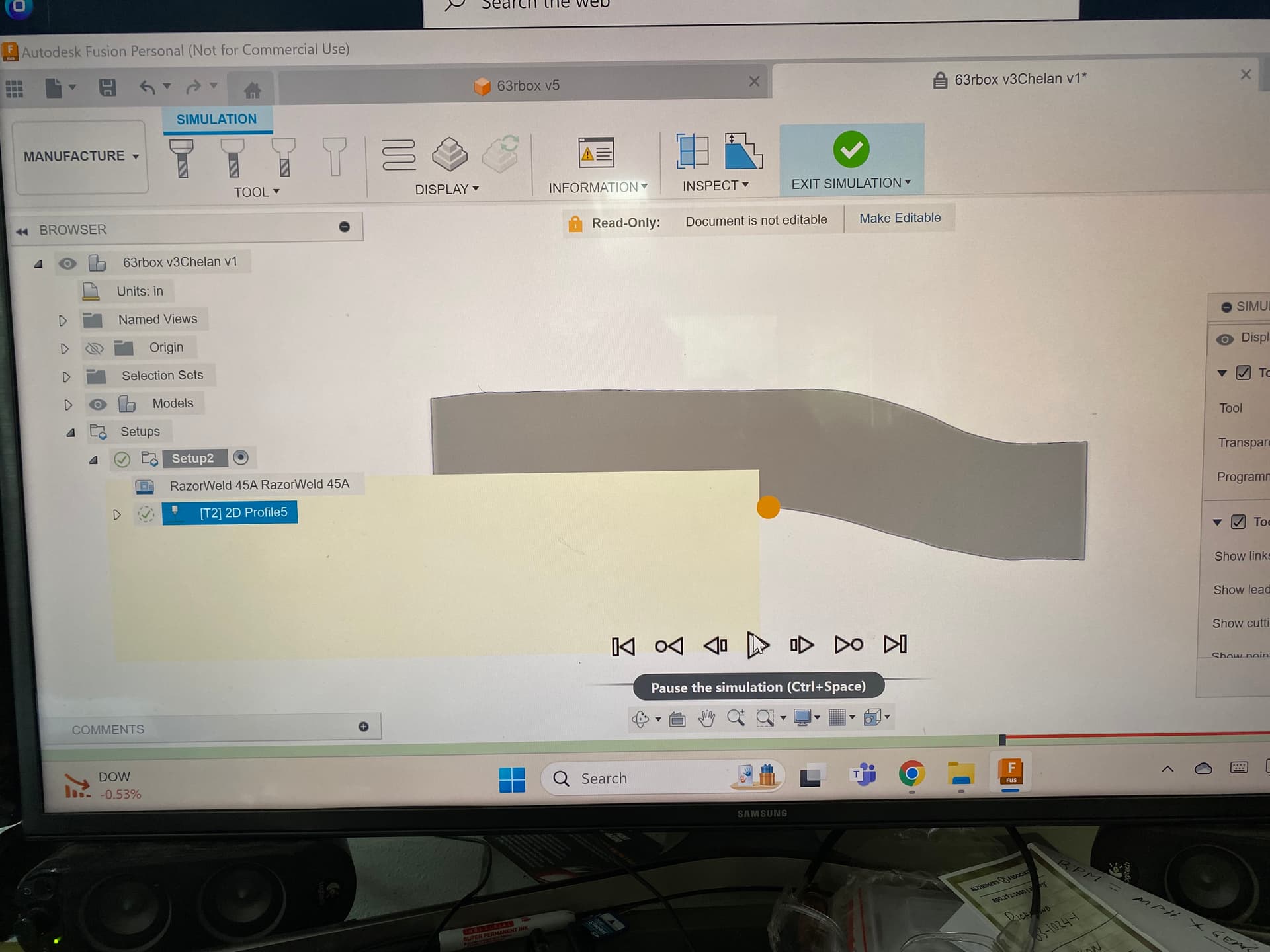
I don’t know if the picture will show the yellow box?
I see the yellow box, I have never seen that. So you say when you run the simulation in fusion it stops right at the yellow box? or does it disappear behind the yellow box and come back out?
yes,it just stops…weird, I am starting to think I have it so messed up I might have to redraw it?
I saw a note in the upper right corner, issues found clicked on it , it says 2D profile 5 - Errors: 1.
I tried changing the Flute/jet, Shaft, Holder/head, still stops at the yellow, But i noticed I can hit the arrow keys and make it go thru the yellow but it’s red in the path?
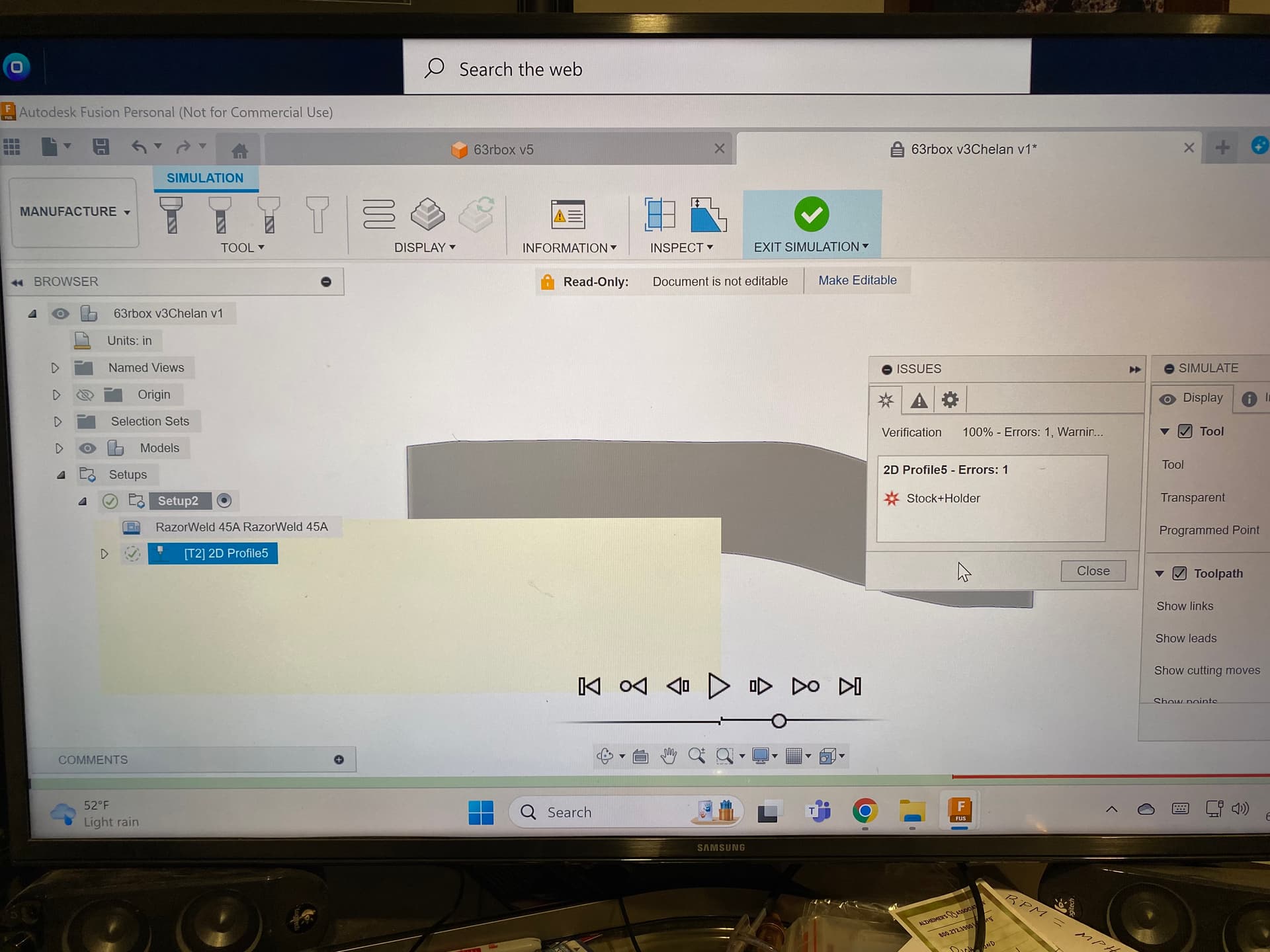
I am not sure what you are doing in the setup and cut profile.
Worked for me by closing the gap in the sketch, extruding, new setup selecting the body not sketch, then the cutting with your Razorweld (came with the f3d you posted) face contour selection, again not sketch.
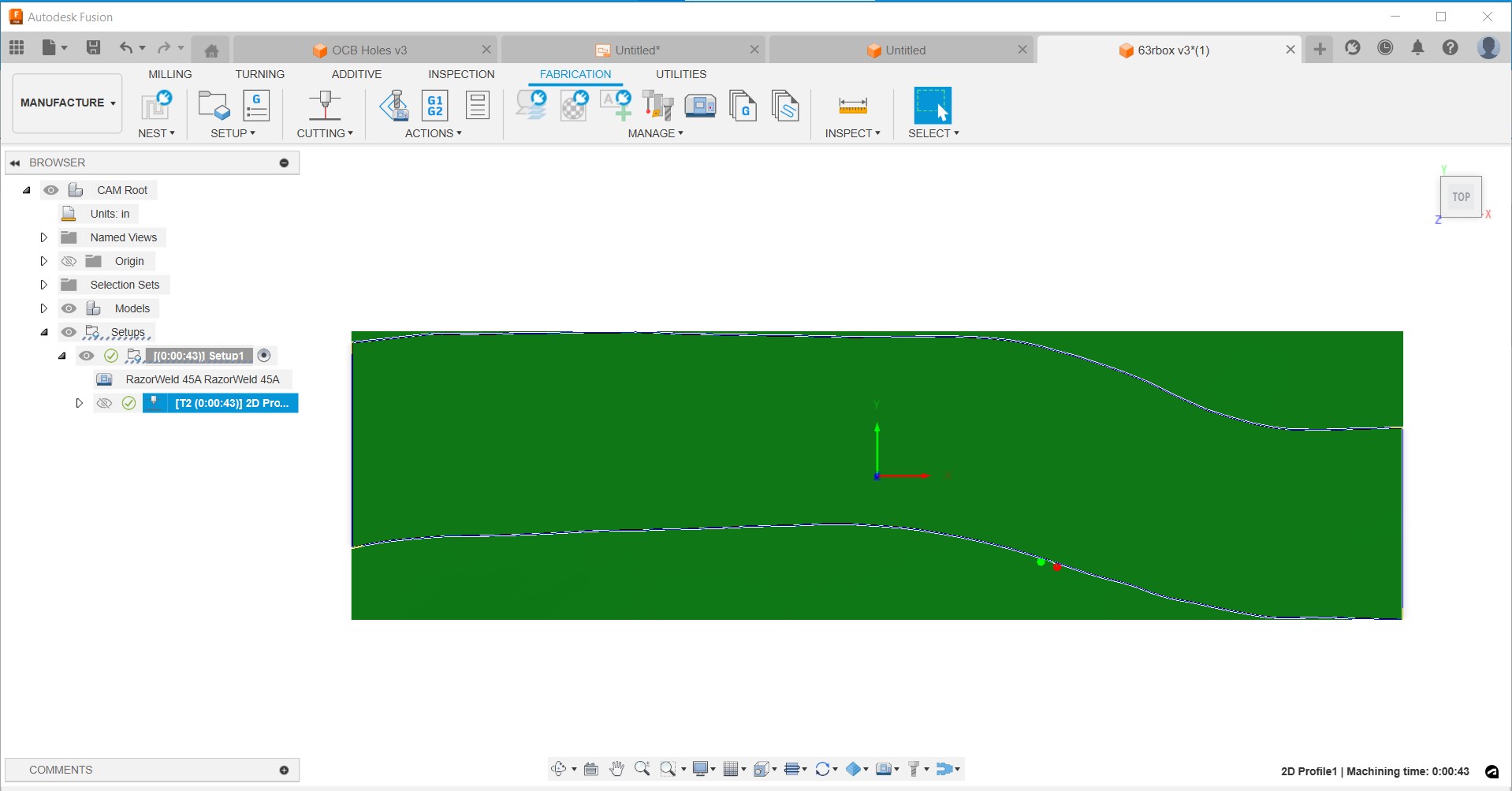
1 Like
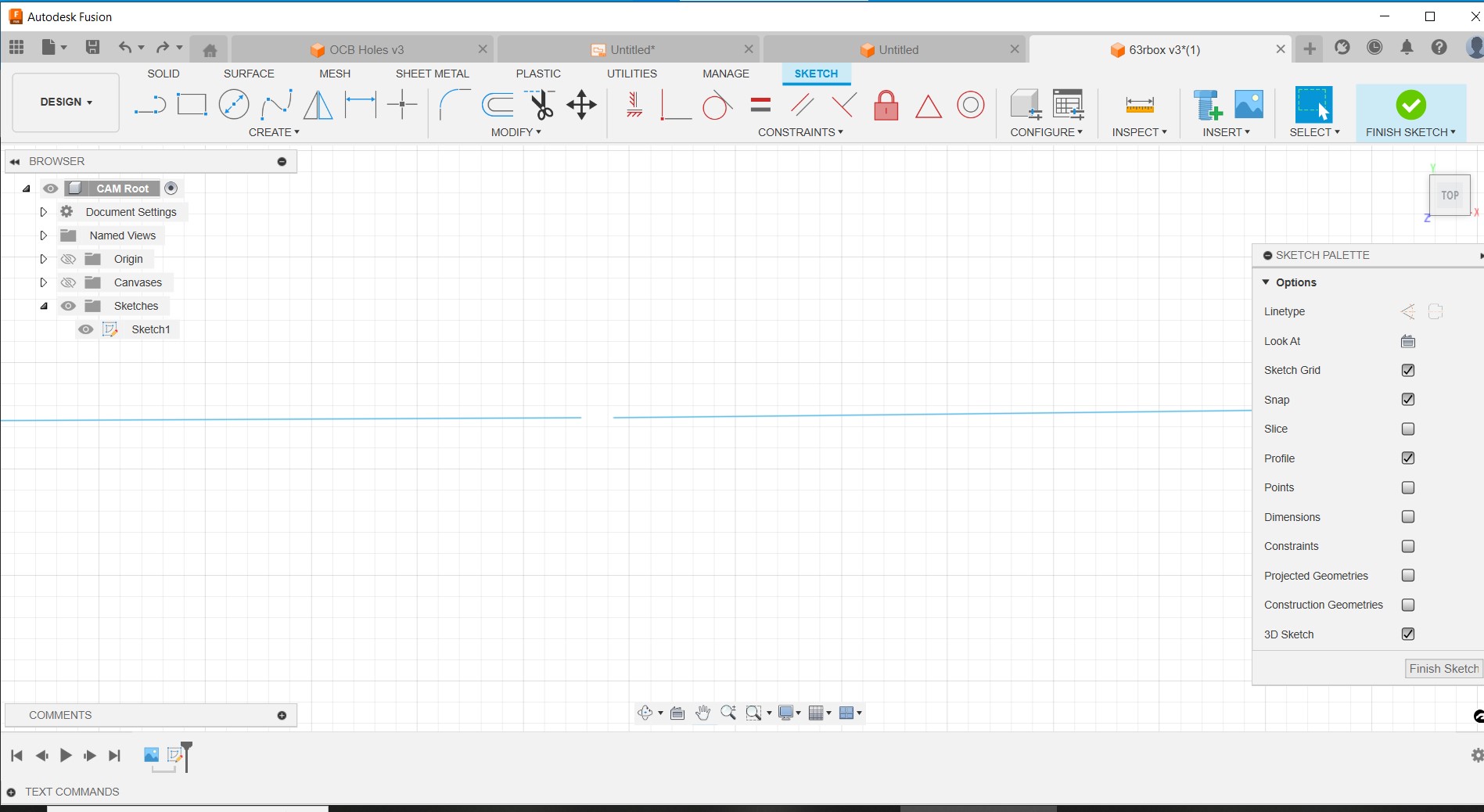

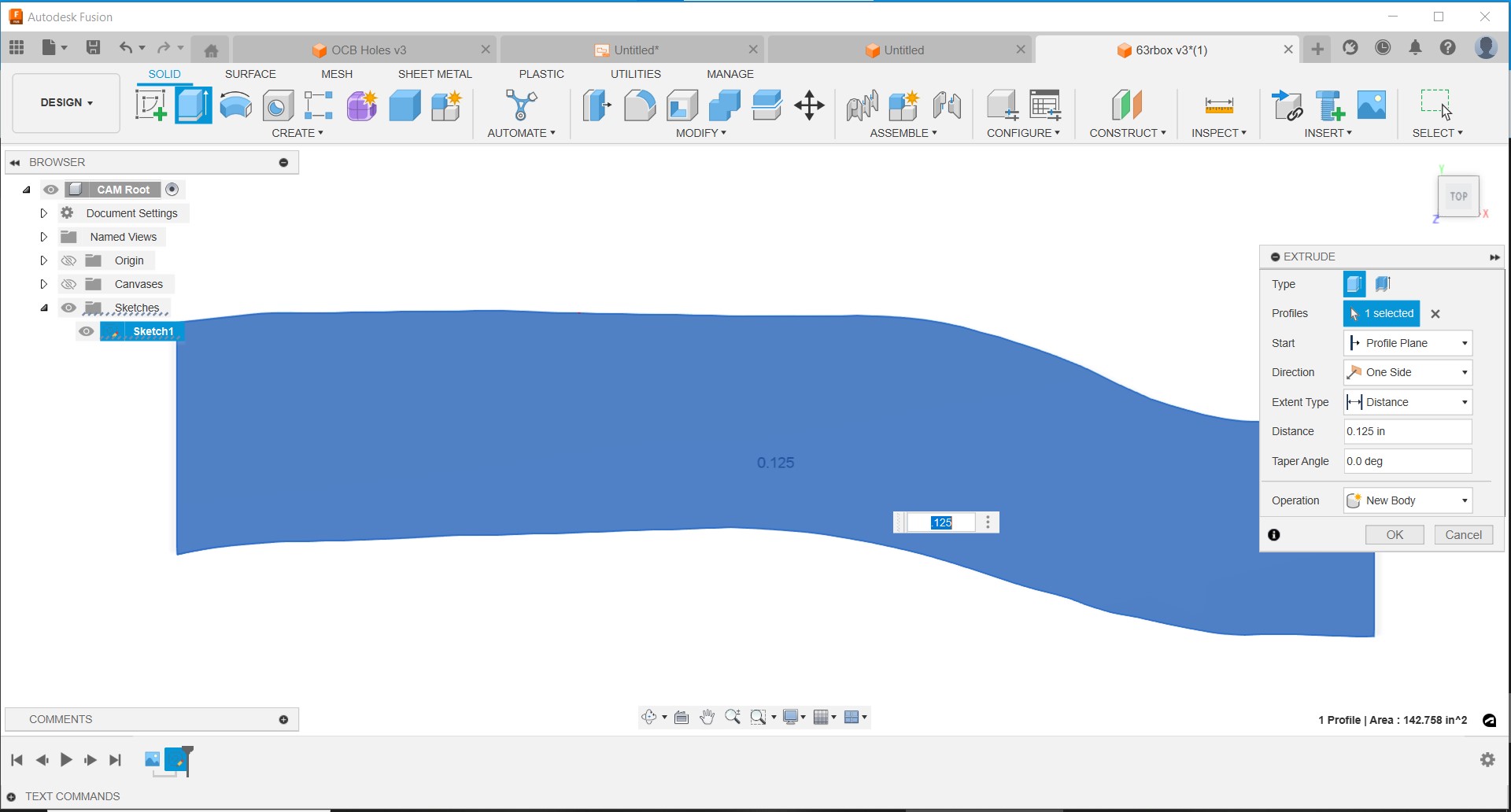

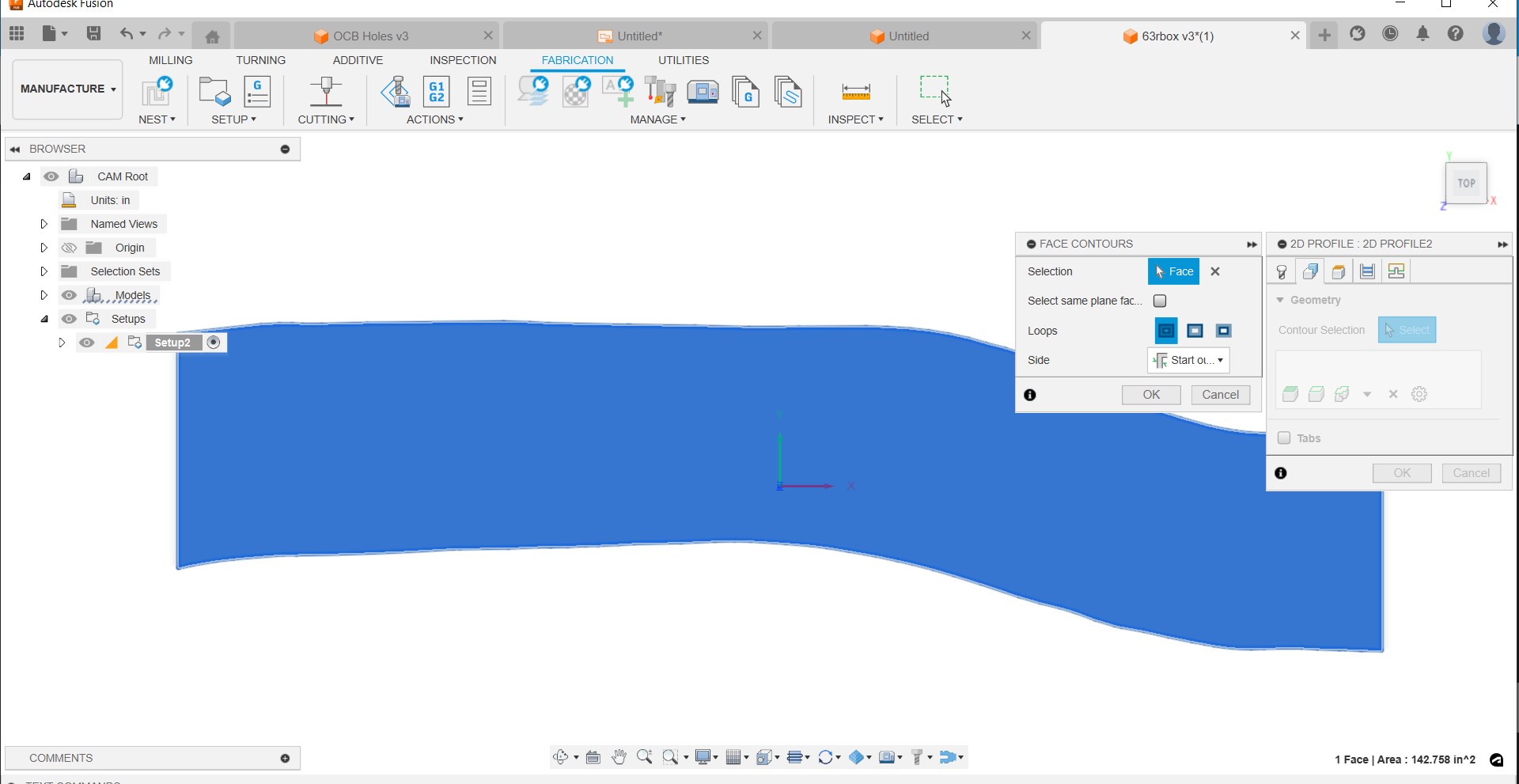
You need to go back to Design and edit the drawing, removing all the history behind the original drawing.
Extrude it and move on to Manufacture.
Delete all your current setups.
Pick your machine. Langmuir crossfire. Not Razorweld.
Set your coordinates and hit OK.
Go to the tool and pick It.
Go to the profile and pick cutting from the top menu.
Pick your cut profiles and then simulate it.
Go to Actions on the top and post-process it.
Then, send it to the table for cutting.
I am not sure how you got to where you are.
In 5 min, you will be cutting.
I looked at your drawing. Delete it all and start from scratch. Load your canvas and trace it out with CONTROL POINT SPLINE instead of 300 short lines.
5 Likes
Watch this video on how to do this.https://youtu.be/iaUMYRP3CxA?si=H5aCJOSFQNmMkGcy
You got this. 
2 Likes
I’m not a Fusion user, but it seems that Fusion thinks the yellow box is a piece of stock that the torch will crash into.
1 Like
Thank you Sticks, and Big Daddy, Thank you for the concise directions.
I have zoomed in and am amazed you guys still find missing lines?
I will go back to zero and redraw using your input, It may be a couple days because i am really busy right now, I will report when I have success, Thank you again for al the help!
2 Likes