I am wanting to cut a simple collapsible fire pit and found a dxf file that I like. Got it, downloaded it and all seems fine. I cannot use the “insert” tab on the page so I have been uploading through the file tab on the upper left screen. I have done this before with other files and have been successful.
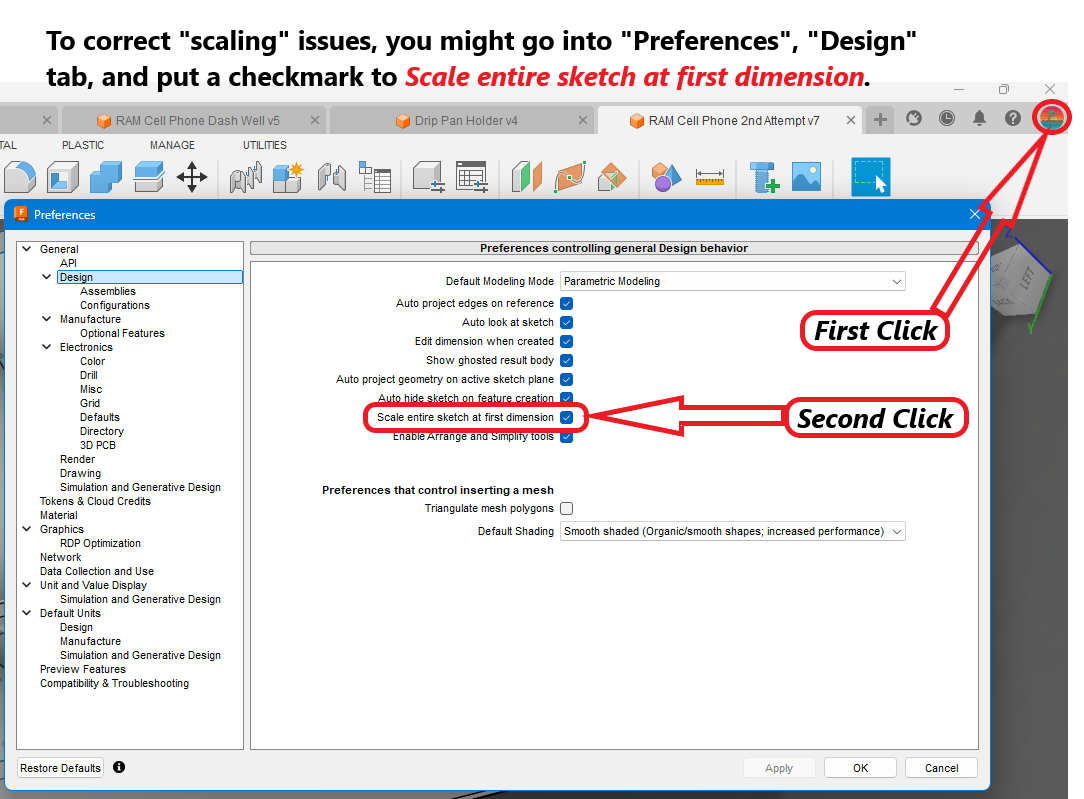
When I open the file which is in inches, it show up on the screen as mm. I have changed to inches in dimensions, but it doesn’t seem to take on all parts.
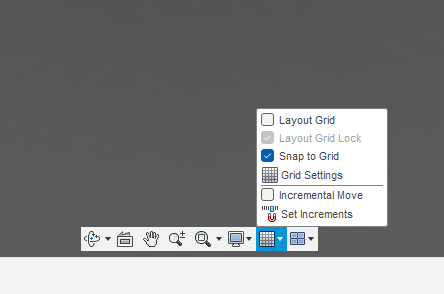
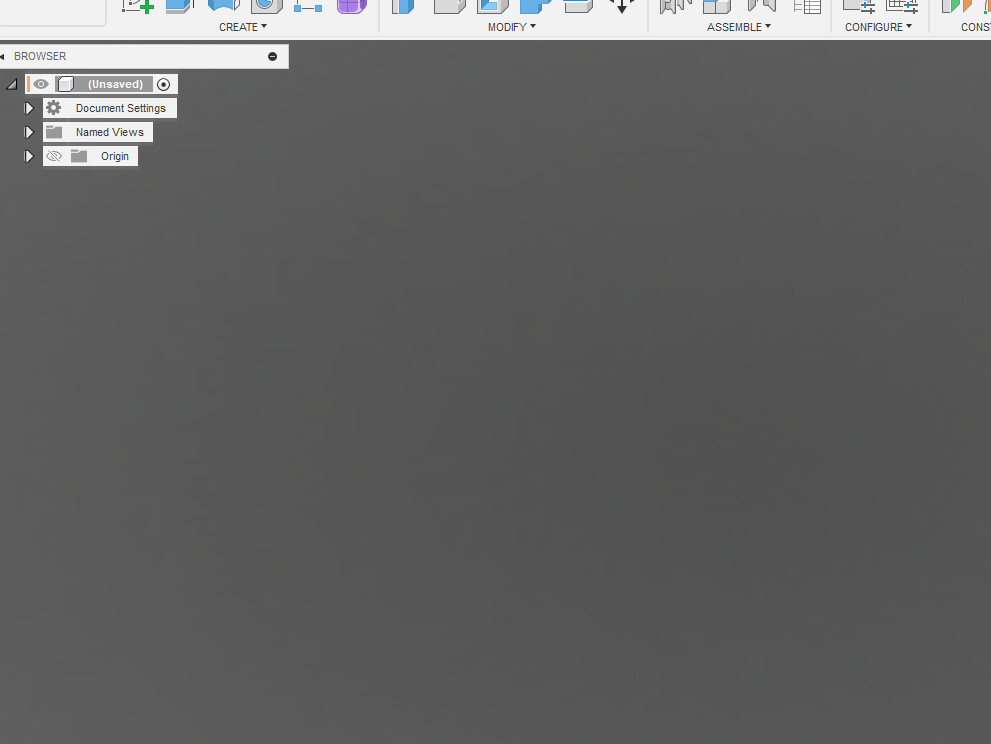
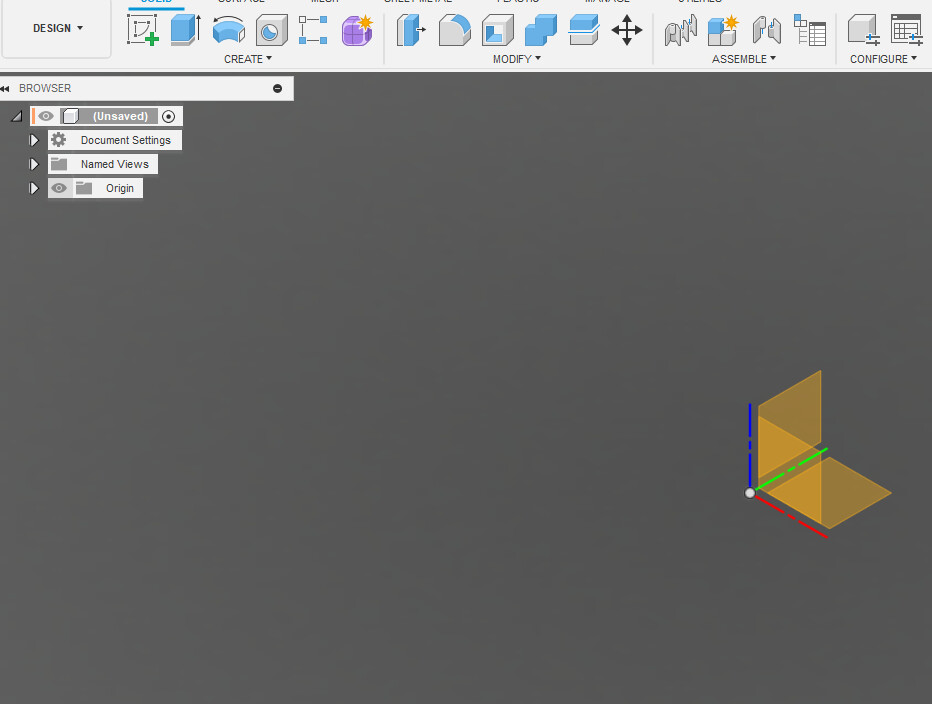
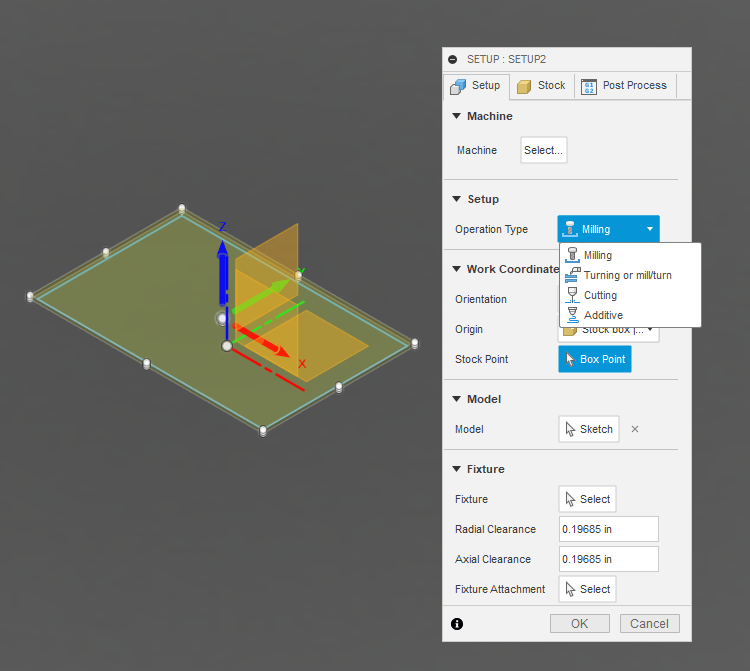
Problem #2 is when the image shows on the screen there are no grid lines or origin dot. I got one part into inches and got it extruded, went to set up cutting but fusion wouldn’t recognize my plasma cutter. I have never had that happen before.
I may have several issues here that I do not know how to mitigate. Still learning and it seems about the time I get a small part of this, some thing else gets in my way.
You might just need to point Fusion in the right direction. If you are talking about the Setup screen in Manufacture, you really don’t need your machine in that screen but you want to make sure that you are in “Cutting.” After an update, Fusion 360, sometimes, defaults back to Milling operation. You need to change that you “Cutting” and then you will be okay.
Thanks all for the help. So far everything I have tried has not worked, file still shows up in mm.
I guess I should post what equipment I am using. I purchased a barely used Crossfire with a Razorweld 45. Still using Mach 3 and the free version of Fusion 360. This is for my own use. I am trying to learn this on my with YT and forums.
@Erle It opens for me. Make sure you expand the file in Windows before you try to bring it to Fusion. The file is compressed… Then go to the import file on the top left. Pick your file from the download list. A screen will pop up to change it to inches from millimeters. The file will pop up as a small circle. VERY SMALL almost a dot. Roll the mouse wheel until it is the size you want. For example, the bottom plate is 28.5 inches across. Good luck
To build on this the OP you can use the fit command to bring everything visible into frame. Myself I use double click on the mouse wheel to make this happen but F6 is also the hotkey.