Hi, how would I go about creating a drawing that is the width of the kerf cut. So basically just one pass cuts a line? It seems when drawing lines in 360, it needs to have a width, I just want to draw a line, and have it cut the width of the kerf regardless. Trying to get thin lines, like branches and small grass detail.
You can just draw a line, as long as you don’t extrude your sketch.
I don’t use fusion, but most CAD programs work the same. For plasma cutting, there is no need to extrude. You can just create your tool paths from the sketch.
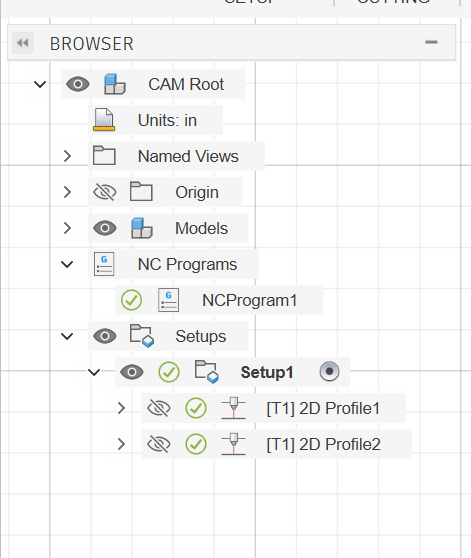
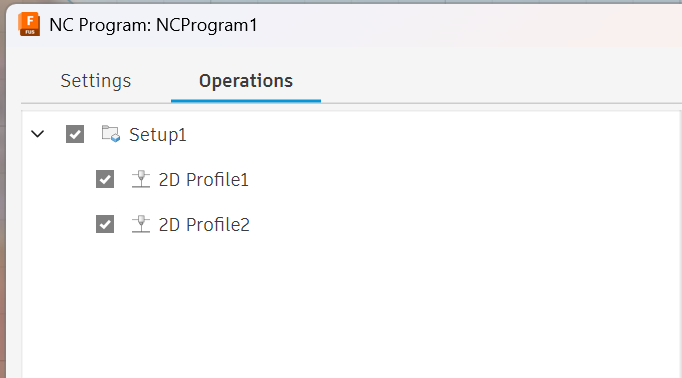
I tried this with a drawing with closed and open lines, and it seems I had to make a new cutting profile for the open lines, and when I POSTED the file, it only saved one of the paths. If I have two profiles (Setups), how do I save both in the same drawing? (NC program)
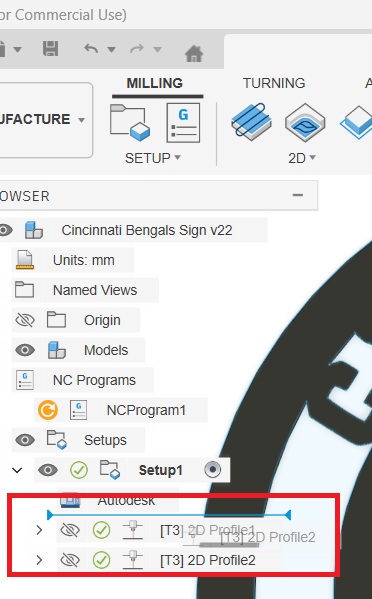
Make sure that second toolpath has the contour that separates the entire piece from your metal sheet or you might lose the electrical connection with the cutter. You can easily move them by long press and drag into position in the browser.
Just to expand on what KwikFab stated:
Secondly, make sure you don’t have either/any toolpath highlighted (only highlight the “setup”) otherwise when you go to the gcode process, Fusion will only process the highlighted toolpath.
As Jim said, you can re-sequence so the outer border (or whatever maintains work clamp connection) by clicking on a Toolpath, hold down the mouse button, and drag and drop (when blue line appears) in the order you want the Post Processor to sequence them.