So, I thought it might be an Inkscape issue, but drawed up a circle file on a different pc with a new inkscape install, with default settings. Same results. Green box huge.
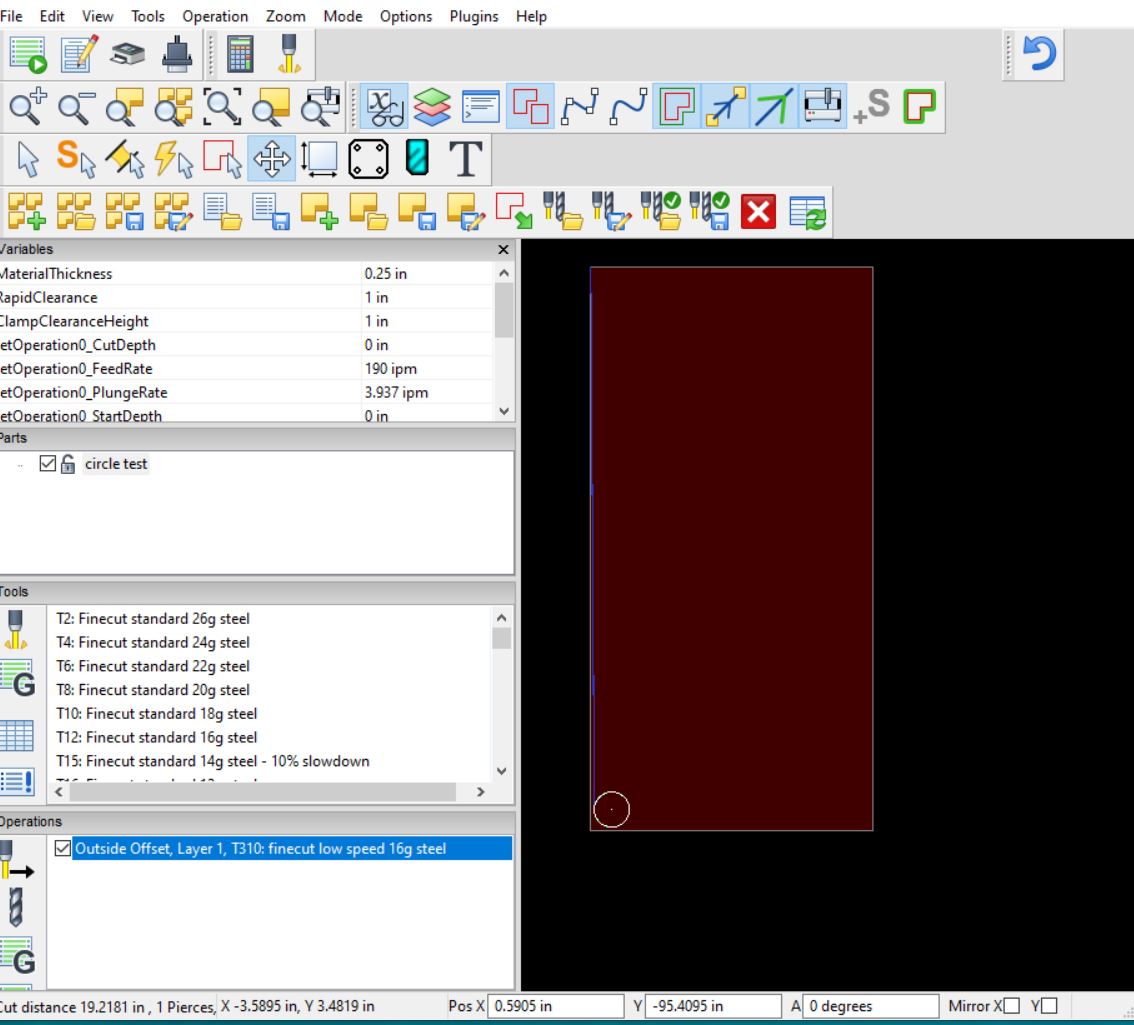
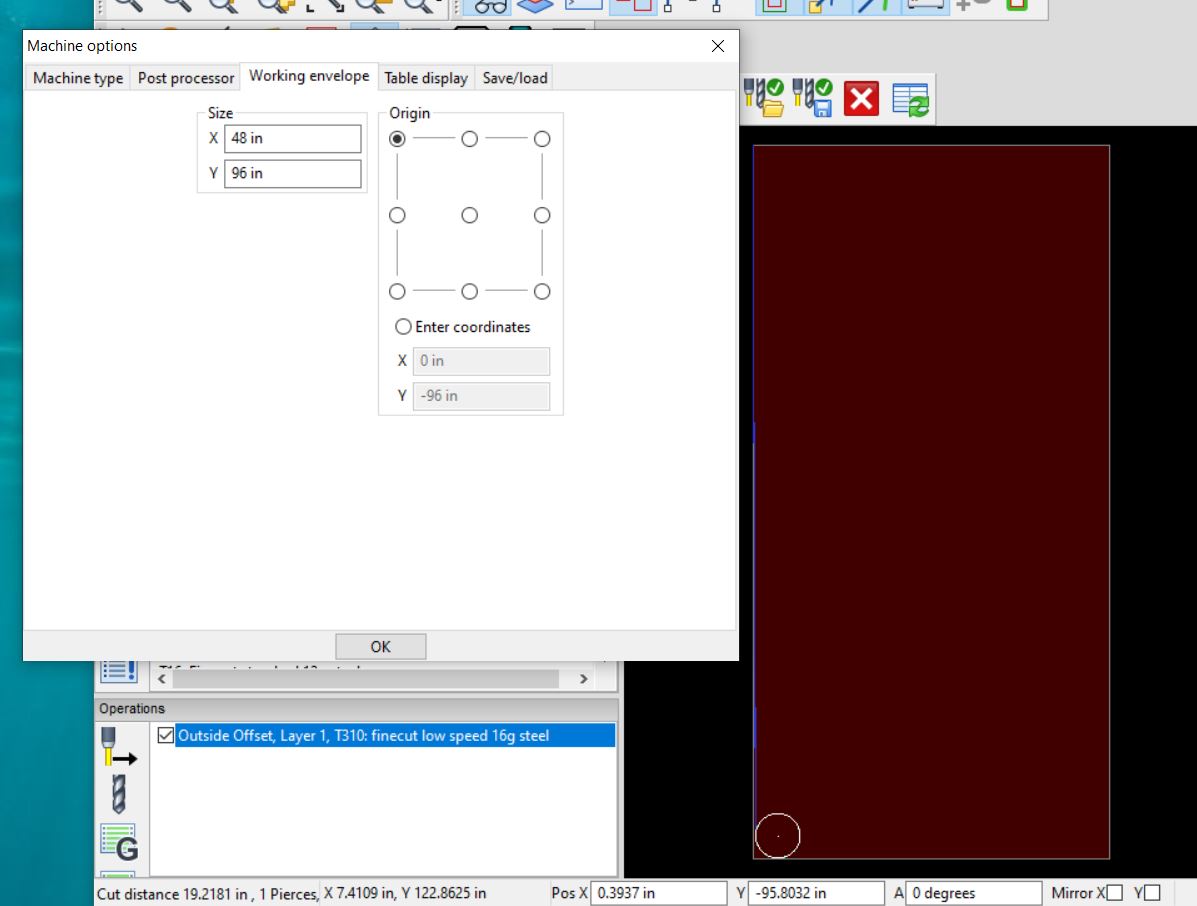
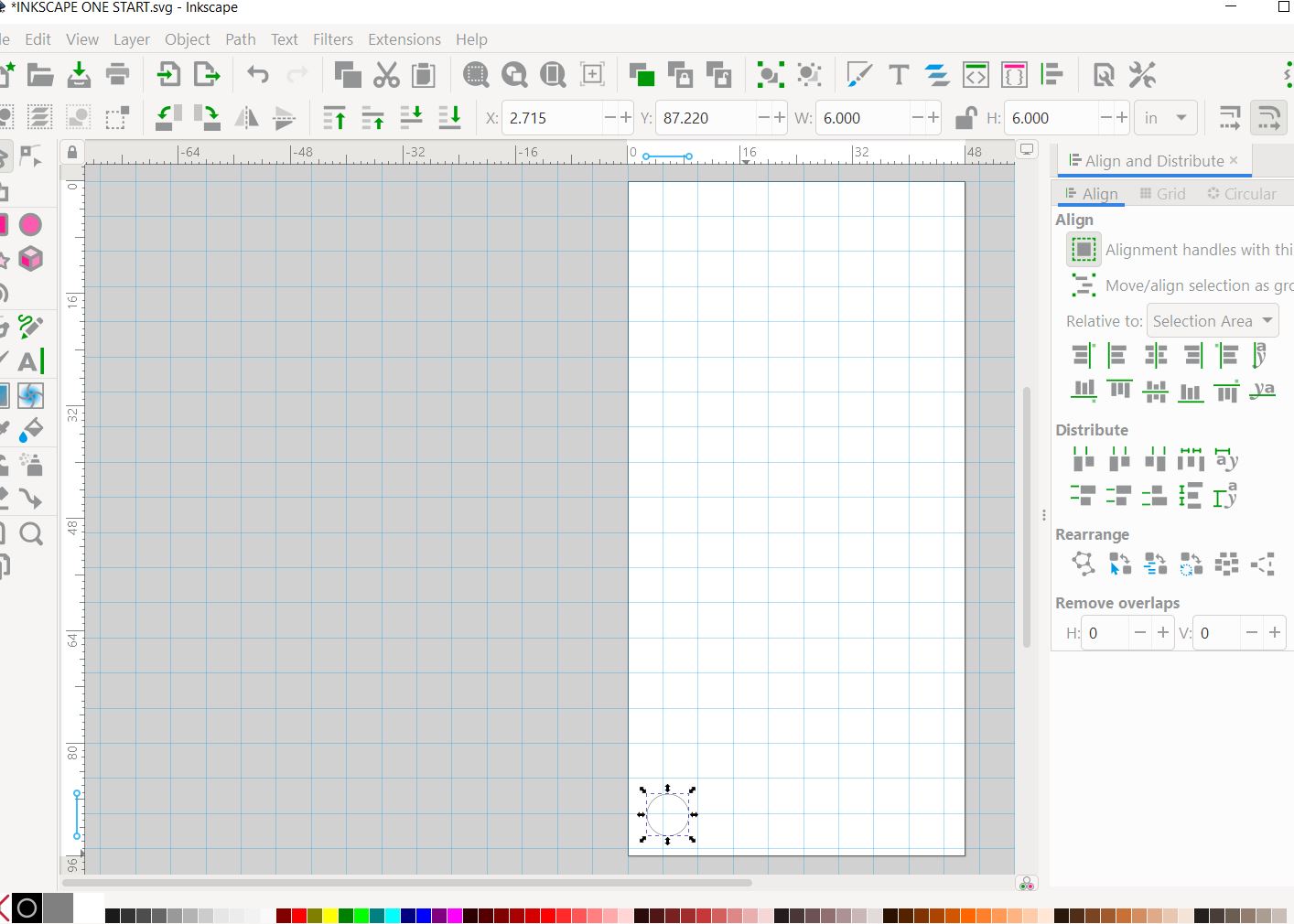
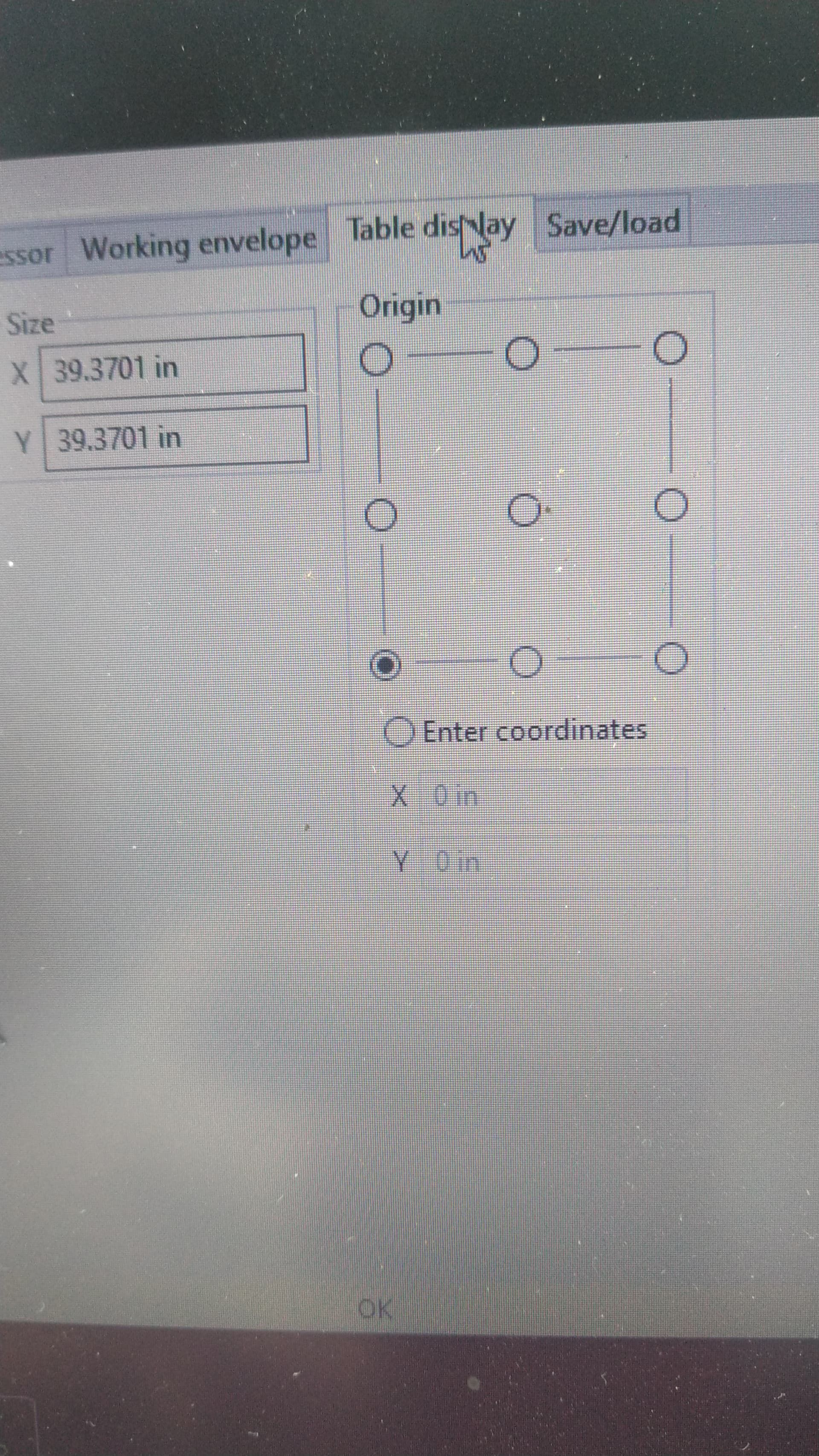
There is a few places to select origin. You want bottom left (if thats where you want to place your parts)
Working Envelope, Table display and then Job Options → Material. To be honest I dont know which one in particular sets the origin, I just know all 3 of mine are bottom left.
Alternatively, you could just leave the options as is and place your parts in the top left, all depends how you want to work it.
1 Like
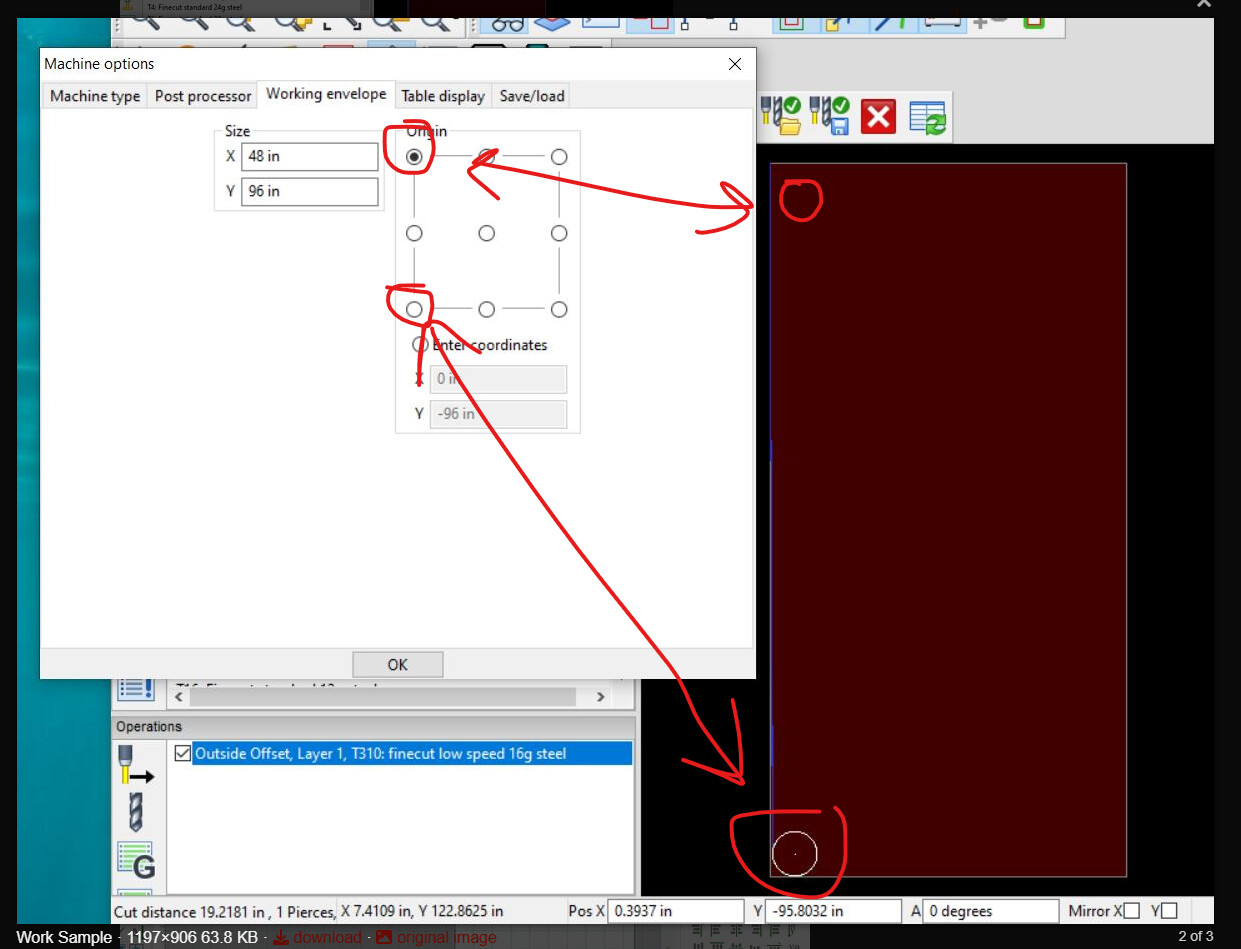
I have all there of mine set to the top left. Being that is where my Home is on my table. I placed the circle at the bottom left. That is where it would cut at on my table. Doesn’t mater where on the table I place it. The green boxes stay the same, very large box.
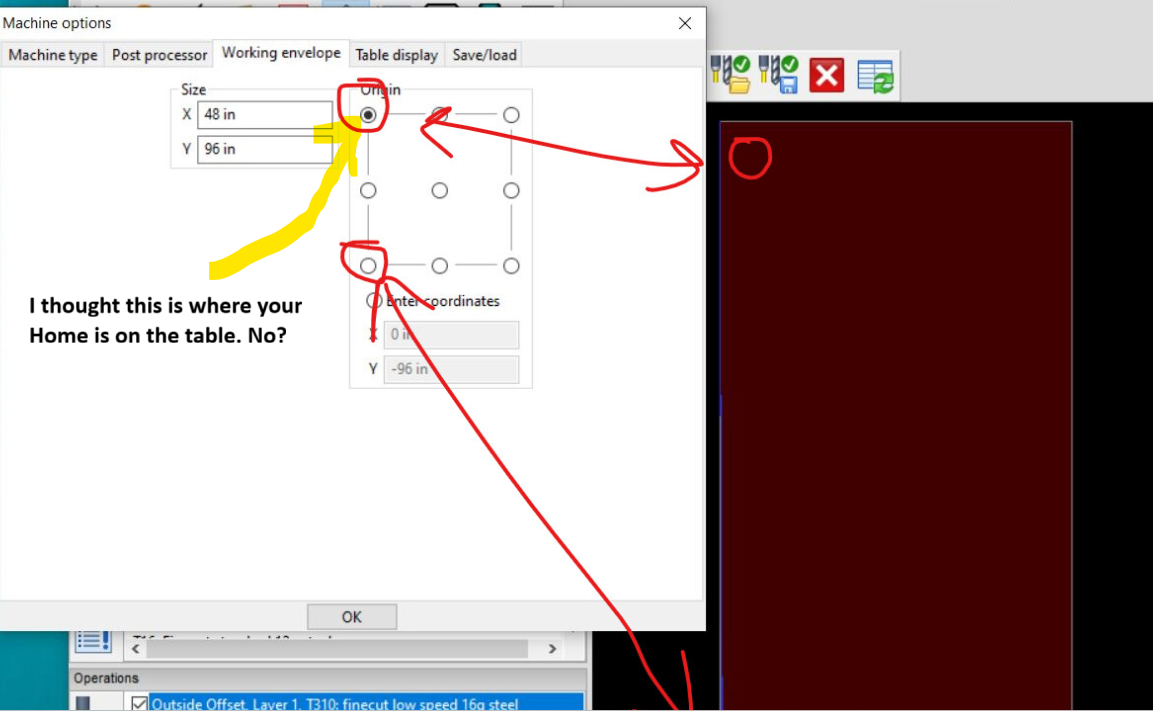
Have you tried to put 0 where you have -96?
Yes, I clear it, and it comes back. Thinking I might do fresh reinstall of Sheetcam tomorrow. Has to be something simple.
1 Like
Share your cad file the svg or dxf. One of us can see how it acts to eliminate a file issue
1 Like
I did, it’s up the page two different files.
Doesn’t matter where home is on your table, home is just where the machine parks. No relevance to anything else you will do (at least for this exercise). I never used the limit switches on my table, so in theory I never had a home. All that matters is where you press zero all axis. This is the point that sheet cam uses the origin location.
The reason you have the below is that’s where your telling sheet cam you want to start from (origin) which is fine if you place your part in that corner too.
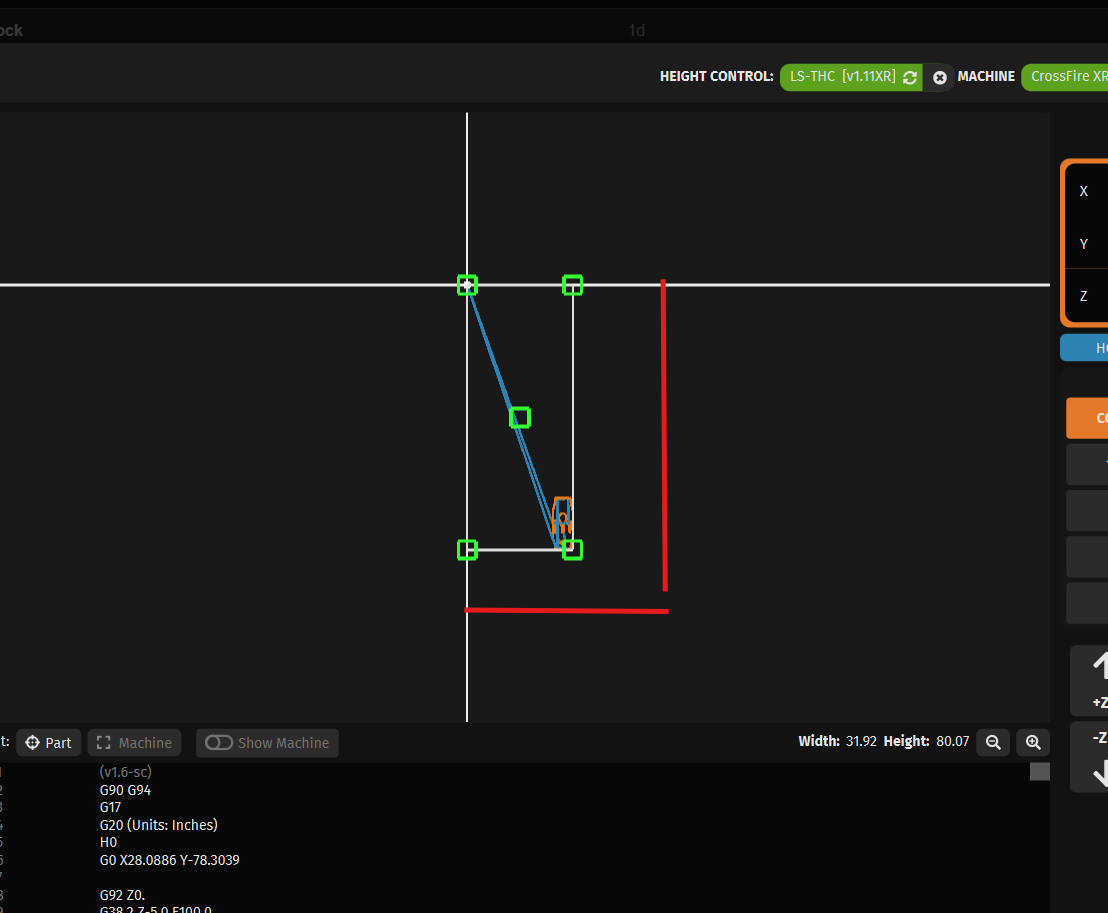
Try again but leave your settings as is and place your part in that same corner you have set for origin. Remember that the part is going to start cutting where every you press zero all axis, not where you place the part in sheetcam.
To add, once you have the part positioned correctly, nicely inside the green boxes. Manually move the torch to the location on the table you want to cut and press zero all axis. If your trying to nest the part in a corner, against the side or another part, use the select original function to help better place that part. If say you are cutting a moon shape, between other already cut parts, you will need to use rotate and a few dry runs to get it right. You may find you are zeroing all axis above water in some instances when trying to use up every last piece of the sheet and cutting a irregular part.
1 Like
Those are your tap files not your cad files. I would also try craig1 suggestions.
1 Like
You have your origin set to the upper left and you are putting your part in the lower left. That’s why Sheetcam is putting the part so far away from the origin. It’s doing what you told it to do.
Move your part to the origin before post processing.
Wherever you put the part on that red rectangle is where Sheetcam will put it in relation to your chosen table origin.
2 Likes
WOW! That was it. I had a complete misunderstanding of Sheetcam settings.Set Program Origin is working great! The Zero ALL Work Axles working great. Most everyone here was tring to tell me the solution, but not until Craigh1 explained it to me did it click. Been using Sheetcam wrong for the last 6 years! Thanks for everyone that took the time to try to help.
2 Likes
This is a good subject as I too find it really confusing to try and set the origin from part drawing in CAD to importing to SheetCam, and then another translation in FireControl and hold the original origin. It’s a topic not well discussed and most seem to learn from trial and error, and lot of cursing in my case.
1 Like
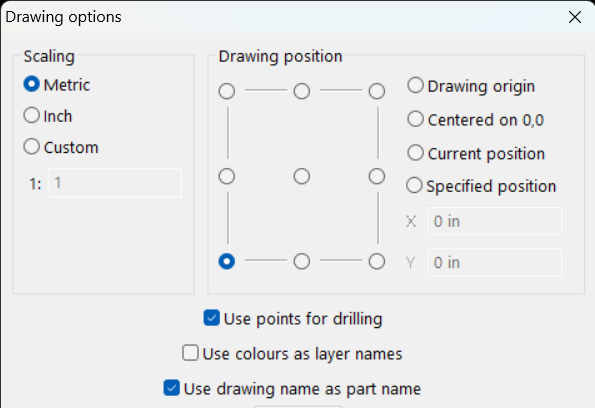
The only thing that you should have to worry about is where you set your part when you import it into Sheetcam. Whatever point you choose on drawing import is where your part will be placed. I have the lower left corner selected in this screen capture, so my part will be placed in the lower left corner of my work area and the origin will be in the lower left. The only thing I have to do in Firecontrol is to Zero the torch where I want the lower left corner of my part on the metal.
1 Like
THANK YOU DS690. This simple setting on import to SheetCam made it simple to keep the original geometry and not get the error message about having to reposition in FireControl.
3 Likes